




Welcome to the Help Center
Explain how to Send SMS Message
Sending an SMS message through the OurSMS platform is simple and fast. This guide explains how to send an SMS message, choose a Sender ID, add recipients, write message content, schedule delivery, and manage SMS campaigns efficiently. The OurSMS platform allows you to send SMS messages quickly and easily to one or multiple recipients directly from the control panel.
This feature can be used for notifications, promotional campaigns, reminders, and important announcements.
Step 1: Open the Send Message Page
Navigate to Send Message from the main menu.

Step 1: Select a Sender ID
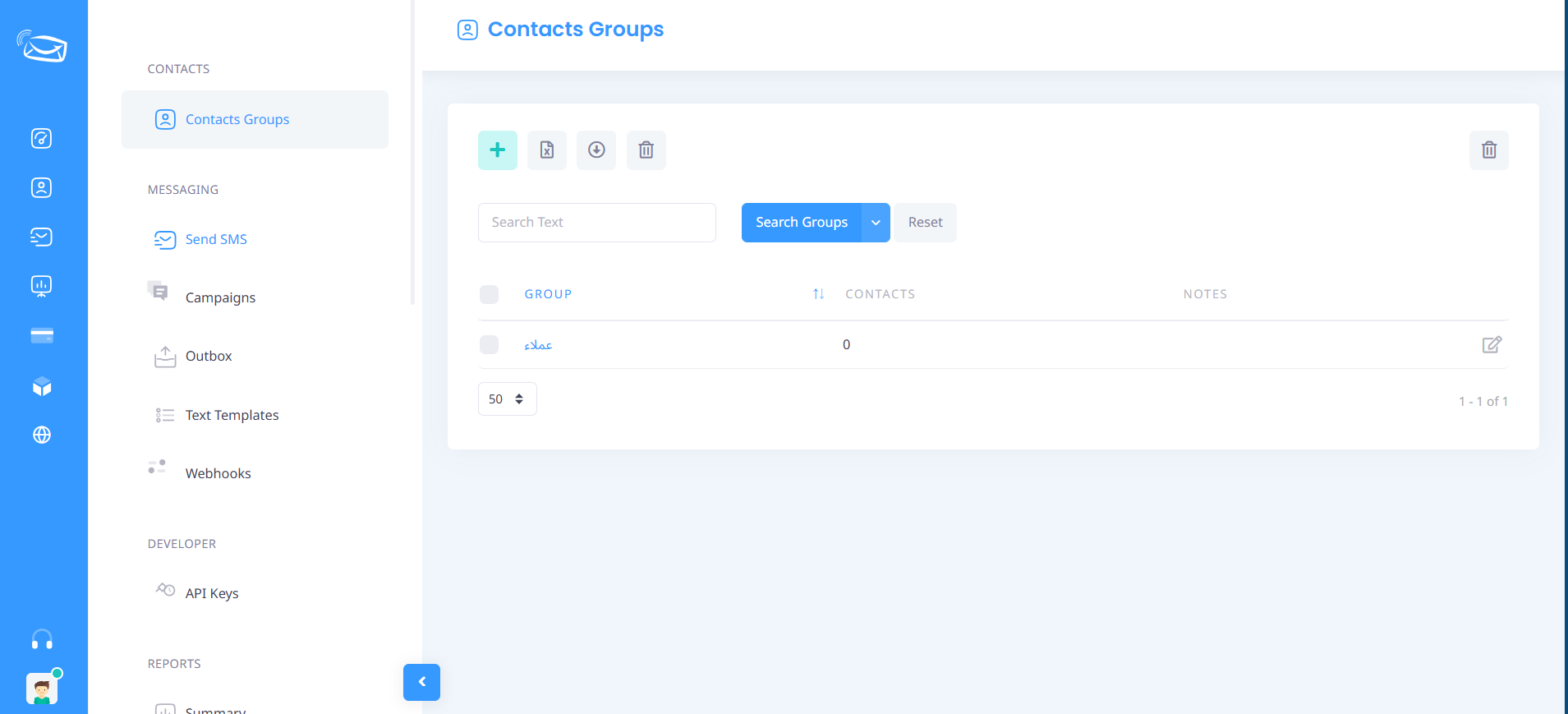
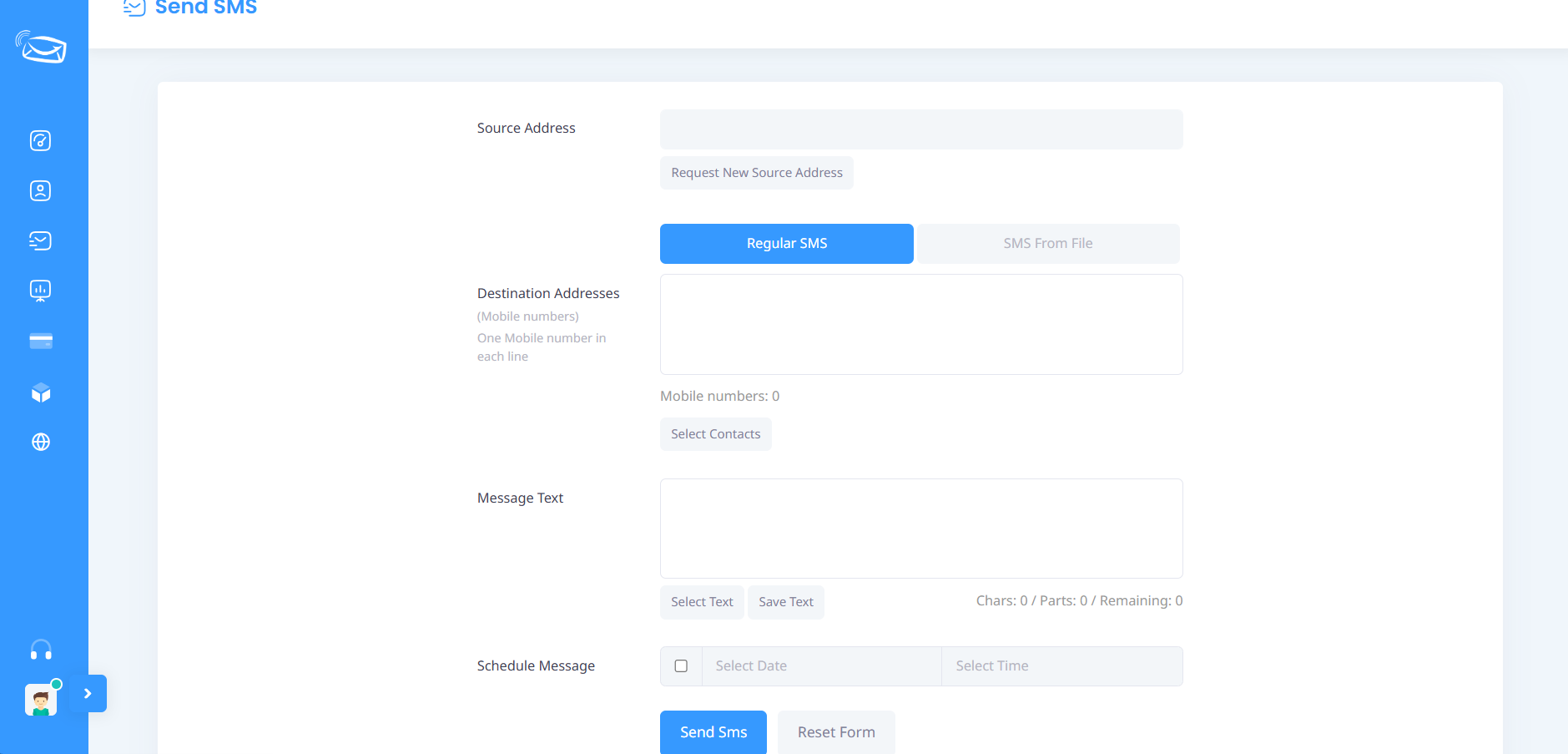
Choose the approved Sender ID you want to use for sending messages.
If you do not have an active Sender ID, you must submit a Sender ID activation request before sending messages.
Step 2: Enter Recipient Numbers
In the recipient numbers field, enter the mobile numbers you want to send the message to.
For better accuracy, it is recommended to enter one number per line.
You can also select contacts from saved contact lists and groups.
Step 3: Select the Message Type
The platform supports two message types:
- Normal Message
- Variable Message
Choose Normal Message if you want to send the same content to all recipients.
Step 4: Write the Message Content
Enter your SMS text in the message box.
You can also use saved message templates for faster communication.
The platform displays character count and message segments while typing.
Step 5: Schedule the Message (Optional)
If you want to send the message later:
- Enable scheduling.
- Select the date.
- Select the time.
For immediate delivery, leave scheduling disabled.
Step 6: Send the Message
Review all information carefully and click Send Message.
The system will begin sending the SMS message to all selected recipients.
Important Notes
- Make sure your Sender ID is active.
- Verify recipient numbers before sending.
- SMS cost depends on message length and language.
- Delivery reports can be viewed in the Reports section.
- Saved templates can help speed up recurring communications.
The OurSMS platform helps businesses and organizations send SMS messages quickly and reliably. Whether you are sending promotional messages, notifications, reminders, or alerts, the platform provides an easy way to manage and send SMS messages from a single dashboard.
Need Help?
If you experience any issues while sending messages, please contact the OurSMS support team through the available support channels.