




Welcome to the Help Center
Explain how to send message variables
Send Variable SMS Messages
The Variable SMS Message feature allows you to send a different message to each recipient using a single Excel file. This helps businesses, schools, and organizations personalize SMS messages without sending them individually.
Variable messages can be used for:
- Sending customer names within messages.
- Sending unique discount codes.
- Sending account balances or loyalty points.
- Sending OTP verification codes and temporary passwords.
- Sending personalized results or information to each recipient.
Step 1: Open the Send Message Page
From the side menu, select Send Message.
Step 2: Select a Sender ID
Choose the approved Sender ID that will be used to send the messages.
If you do not have an active Sender ID, click Request New Sender ID and complete the activation process.
Step 3: Select Variable Message
Choose SMS from file instead of the regular SMS message option.
Step 4: Select the Excel File
Click Choose File and select the Excel file containing recipient data and message variables.
Step 5: Upload the File
Click Upload File to import the data into the system.
Step 6: Match the Columns
Select the mobile number column and map the remaining columns to the variables that will be used in the SMS message.
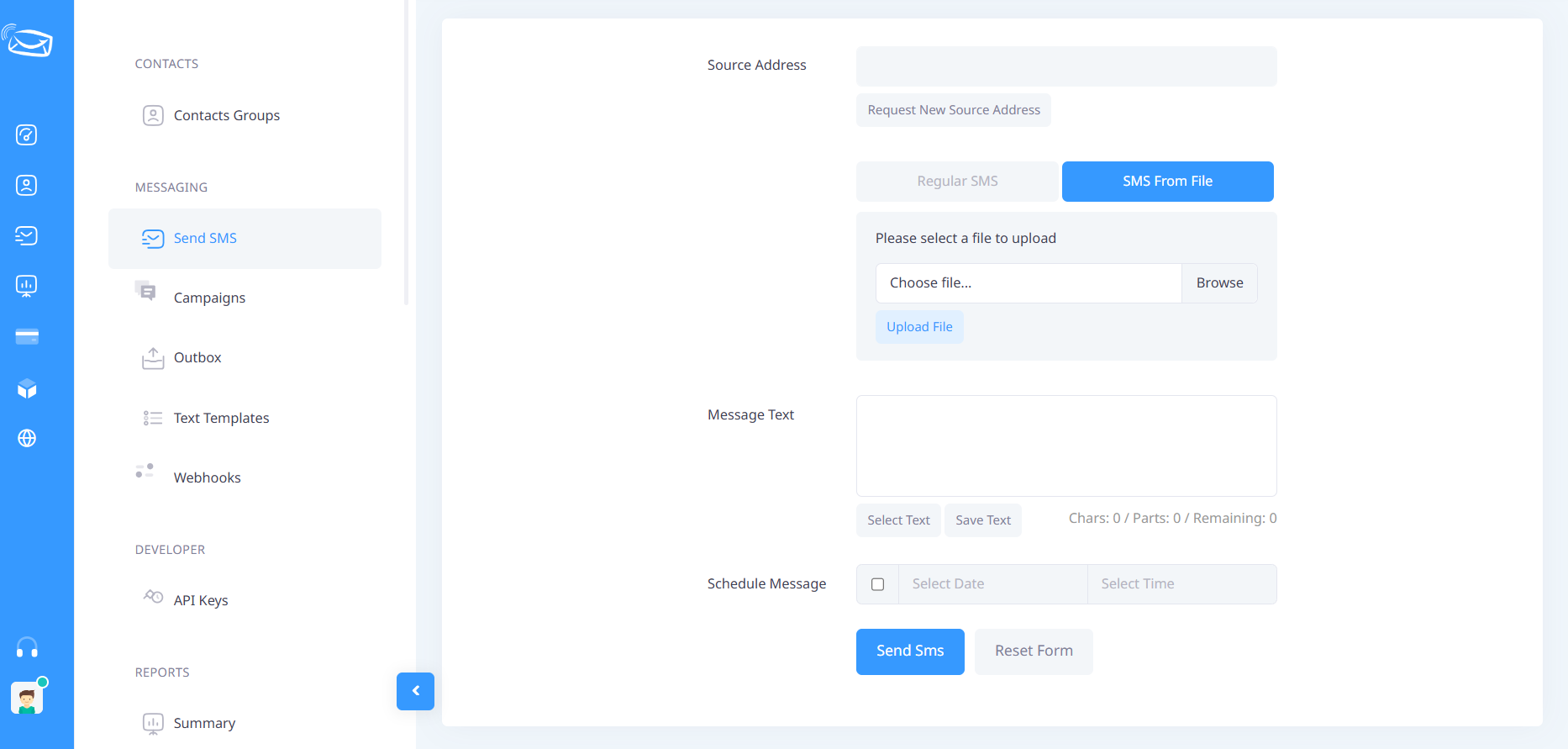
Step 7: Write the Message Content
Create your message using variables such as:
Dear Customer {{1}}

Your order number {{2}} has been successfully registered.

Our team will contact you shortly.
Important Notes
- The Excel file must be in XLSX or XLS format.
- The file must contain a column for mobile numbers.
- Ensure that the variables used in the message match the columns in the Excel file.
- Review the preview before sending to verify the data.
- SMS credits will be calculated based on the number of recipients and message length.
Example of a Variable SMS Message
If the Excel file contains:
| Name | Balance |
|---|---|
| Ahmed | 50 |
| Mohammed | 100 |
You can write the message as:
Hello {{1}}, your current balance is {{2}} SAR.The system will send:
Hello Ahmed, your current balance is 50 SAR.
Hello Mohammed, your current balance is 100 SAR.
Step 8: Send the Message
After reviewing the data and message content, click Send Message to deliver personalized SMS messages to all recipients.
Benefits of Variable SMS Messages
Variable SMS messages help personalize communication, improve customer engagement, and automatically send customized information to each recipient without manual work.
Need Assistance?
If you experience any issues while creating or sending variable SMS messages, please contact the OurSMS support team through live chat or email for assistance.