




Welcome to the Help Center
How to Add Contacts Manually
Add Contacts Manually in OurSMS
The Manual Contact Entry feature in OurSMS allows you to add contacts directly to any contact group without using Excel files. This helps you organize customer information and send SMS messages quickly and efficiently.
Steps to Add Contacts Manually
1. Open Contact Groups
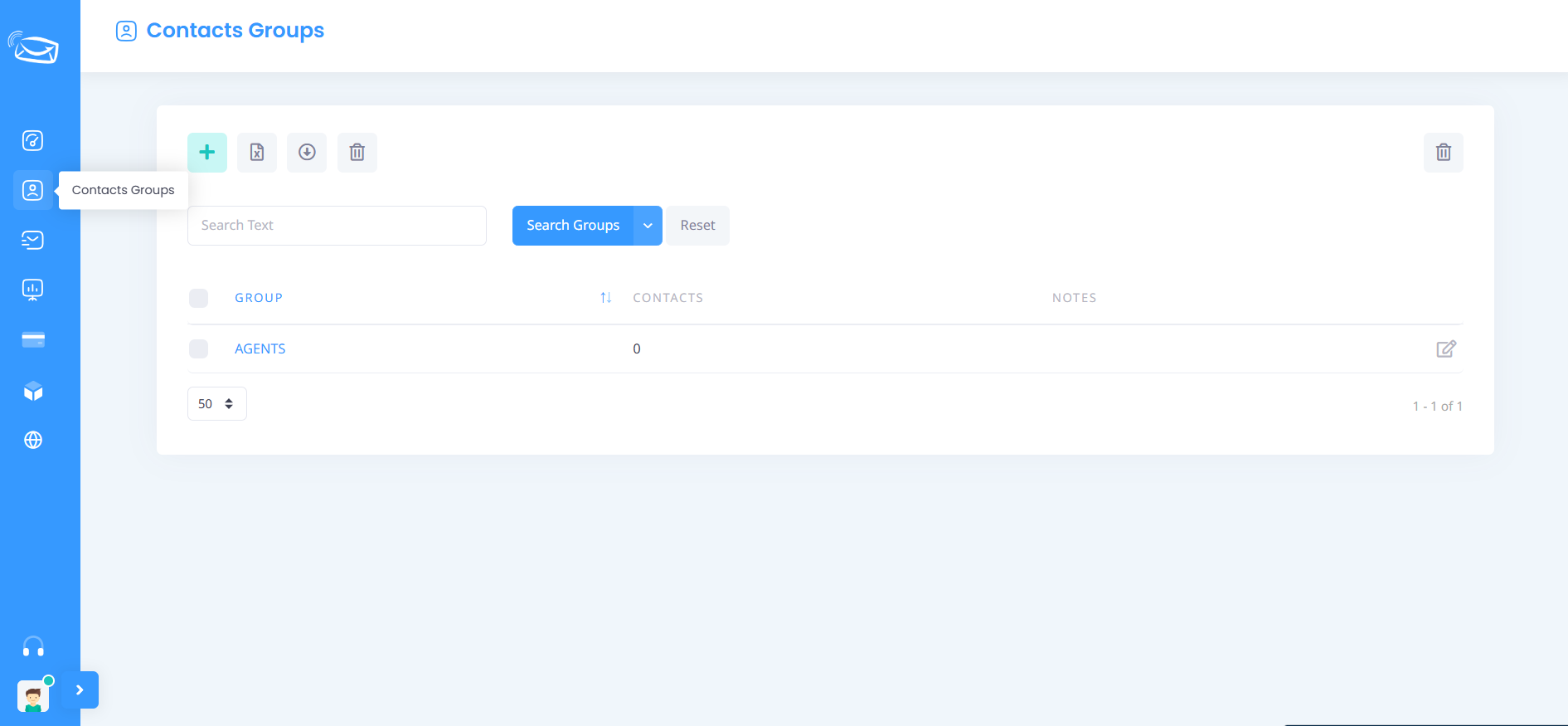
From the side menu, click Contact Groups.
2. Select a Group
Click on the contact group where you would like to add new contacts.
3. Add a New Contact
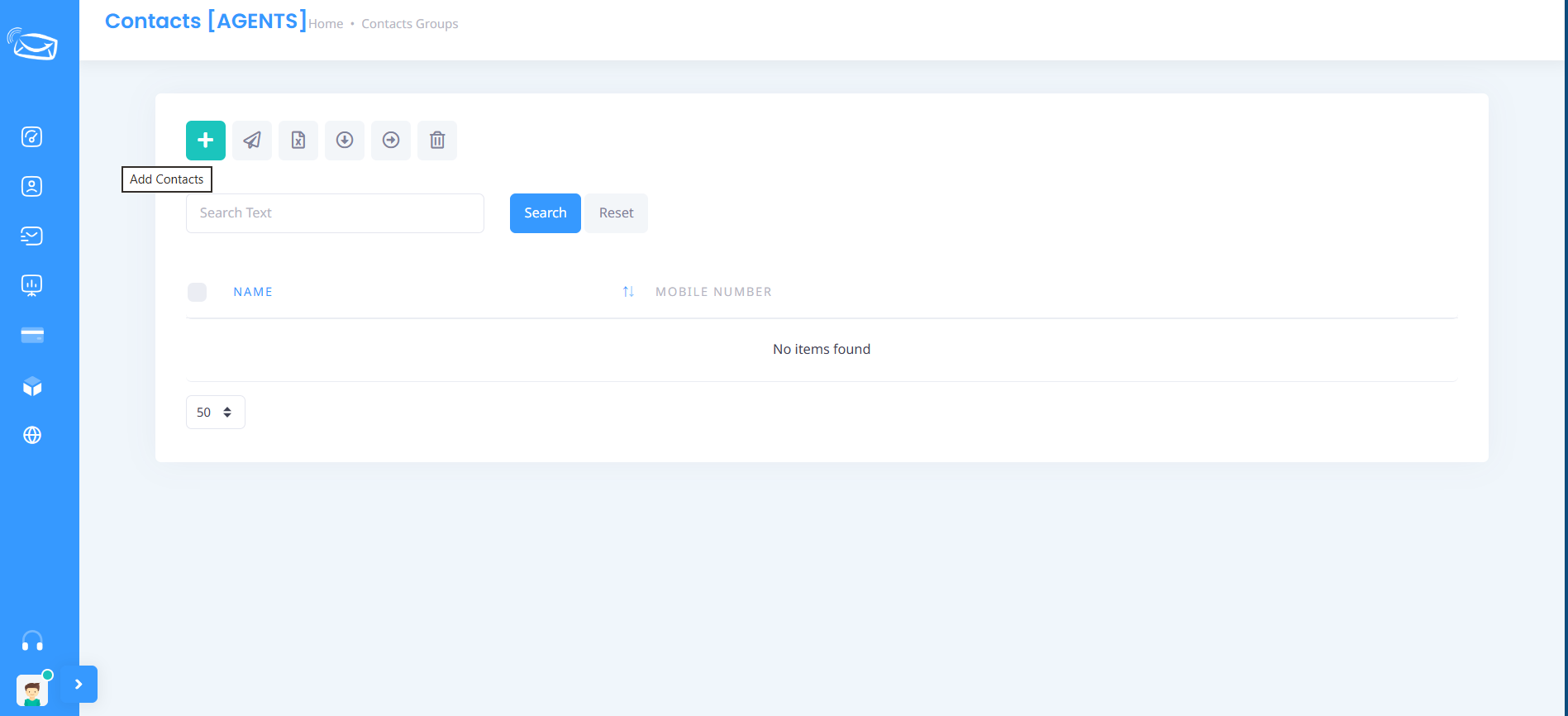
Inside the selected group, click Add Contacts.
4. Enter Contact Information
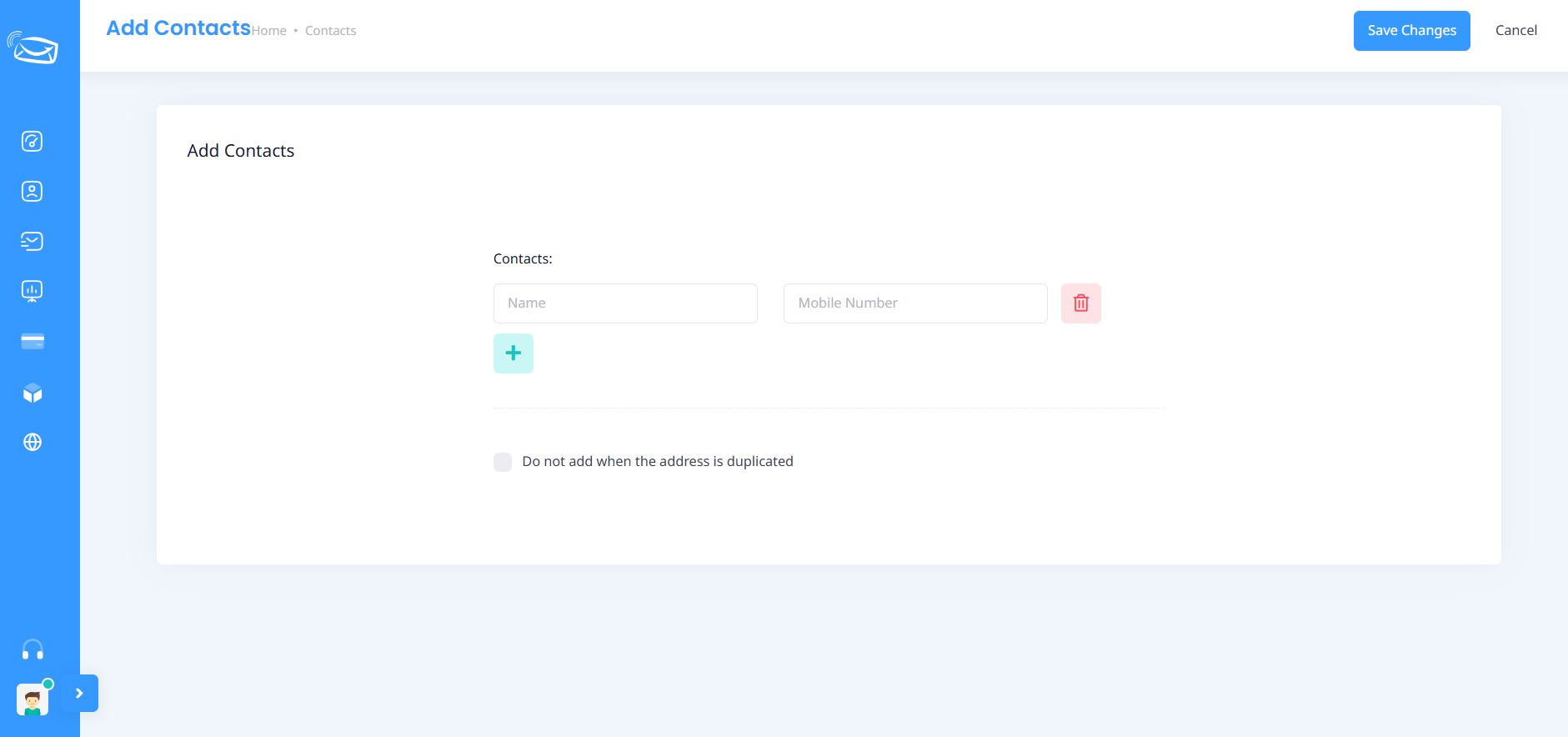
Fill in the required contact details:
- Name
- Mobile Number
5. Add Multiple Contacts
If you want to add more than one contact at the same time, click the (+) button to add a new row and enter additional contact information.
6. Prevent Duplicate Numbers (Optional)
You can enable the option:
Do Not Add Duplicate Numbers
This prevents phone numbers that already exist in the group from being added again.
7. Save the Data
After entering all contact information, click Save Changes.
8. Verify the Contacts
Once saved, the contacts will be added to the selected group and will appear in the group’s contact list.
Benefits of Manual Contact Entry
- Quickly add contacts without using Excel files.
- Add a single contact or multiple contacts at once.
- Prevent duplicate phone numbers within the group.
- Organize customers into different contact groups.
- Easily manage and update customer information.
Manual contact entry helps keep your contact database organized and makes SMS communication more efficient within the OurSMS platform.