




Welcome to the Help Center
How to activate the second verification using the Google Authenticator application
How to Enable Two-Factor Authentication (2FA) Using Google Authenticator
Two-Factor Authentication (2FA) is one of the most effective ways to secure your account. It adds an extra layer of protection by requiring a temporary verification code generated through the Google Authenticator app whenever you sign in.
Follow the steps below to enable Two-Factor Authentication for your OurSMS account.
Step 1: Open Your Profile
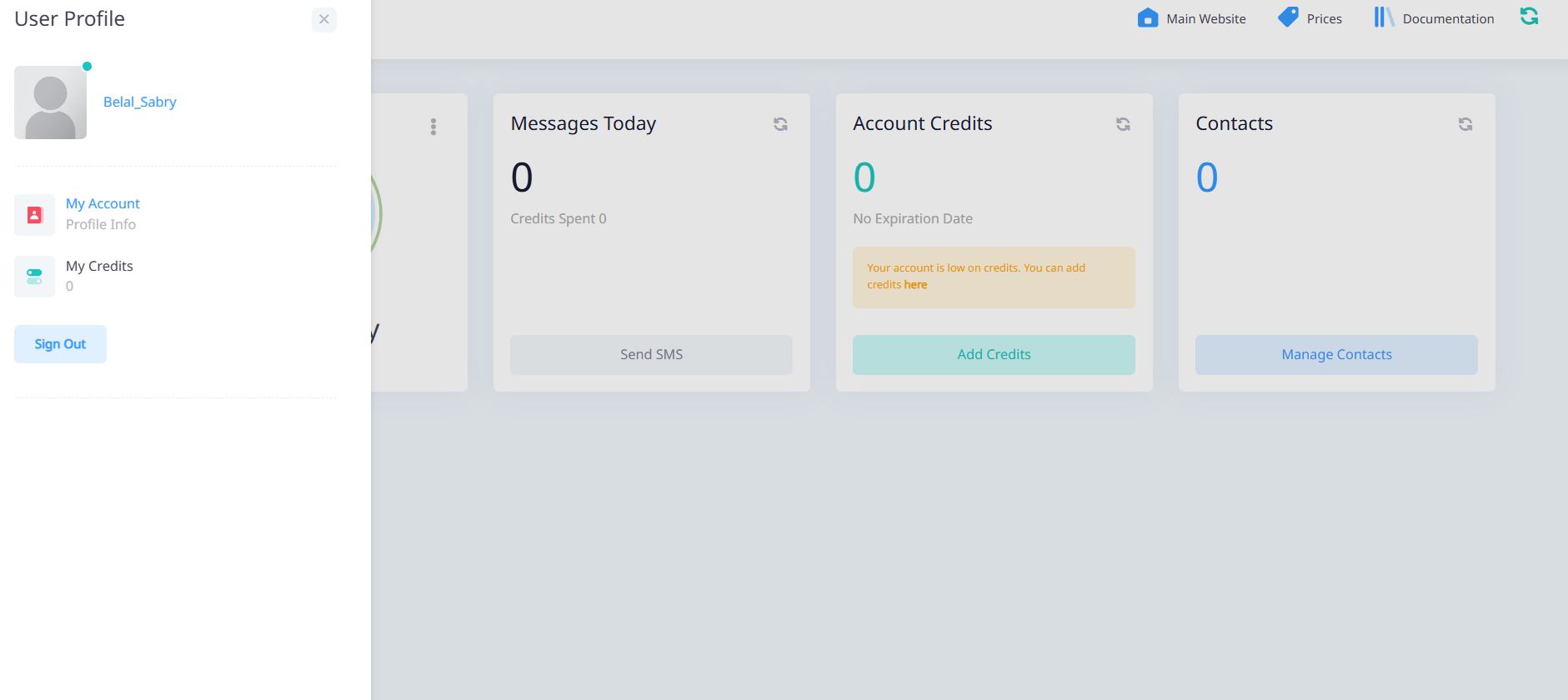
From the dashboard, click on your profile picture or account name located at the bottom-right corner of the screen, then select My Account.
Step 2: Open Security Settings
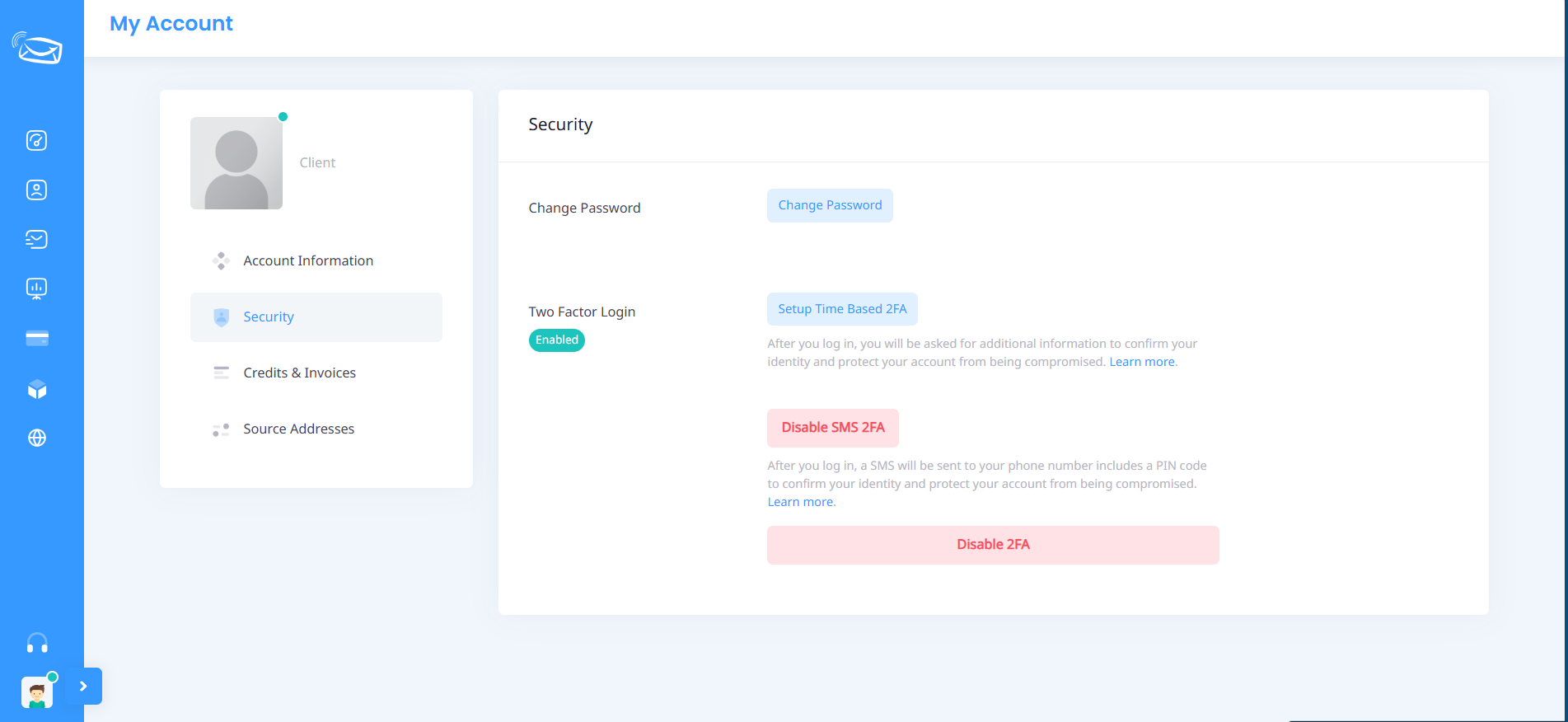
From the side menu within the account page, click Security.
Step 3: Start Two-Factor Authentication Setup
Under the Two-Factor Authentication Login section, click:
Time-Based 2FA Setup
This will open the 2FA configuration window.
Step 4: Install Google Authenticator
If you do not already have the application installed on your mobile device, download it from the appropriate app store.
Android Devices
Download Google Authenticator from Google Play Store.
iPhone Devices
Download Google Authenticator from the App Store.
After installation, open the application on your phone.
Step 5: Link Your Account to the App
A QR Code will be displayed on the screen.
Open Google Authenticator and:
- Tap Add Account (+).
- Select Scan a QR Code.
- Point your phone camera at the QR code displayed on the screen.
If you are unable to use the camera, you can manually enter the secret key displayed below the QR code.
Step 6: Enter the Verification Code
After adding the account to Google Authenticator, a six-digit code will appear in the application.
The code automatically changes every few seconds.
Enter the code into the 2FA Pin field and click Confirm to complete the activation process.
Two-Factor Authentication Successfully Enabled
Once the setup is completed, you will be required to enter the verification code generated by Google Authenticator whenever you sign in to your account from a new session.
This significantly improves account security and helps protect your account from unauthorized access.
Important Notes
- Keep your mobile device in a safe place.
- Never share verification codes with anyone.
- If you lose your phone or uninstall the application, you may need to contact technical support to regain access to your account.
- We strongly recommend enabling Two-Factor Authentication for all accounts containing important data or account balances.
Need Assistance?
If you experience any issues while enabling Two-Factor Authentication, please contact the OurSMS support team. We will be happy to assist you.