




Welcome to the Help Center
How to add messages to favorite messages
How to Add a Message Template in OurSMS
The Message Templates feature in OurSMS allows you to save frequently used SMS messages for quick access when sending messages in the future.
Steps to Add a New Message Template
1. Open Message Templates
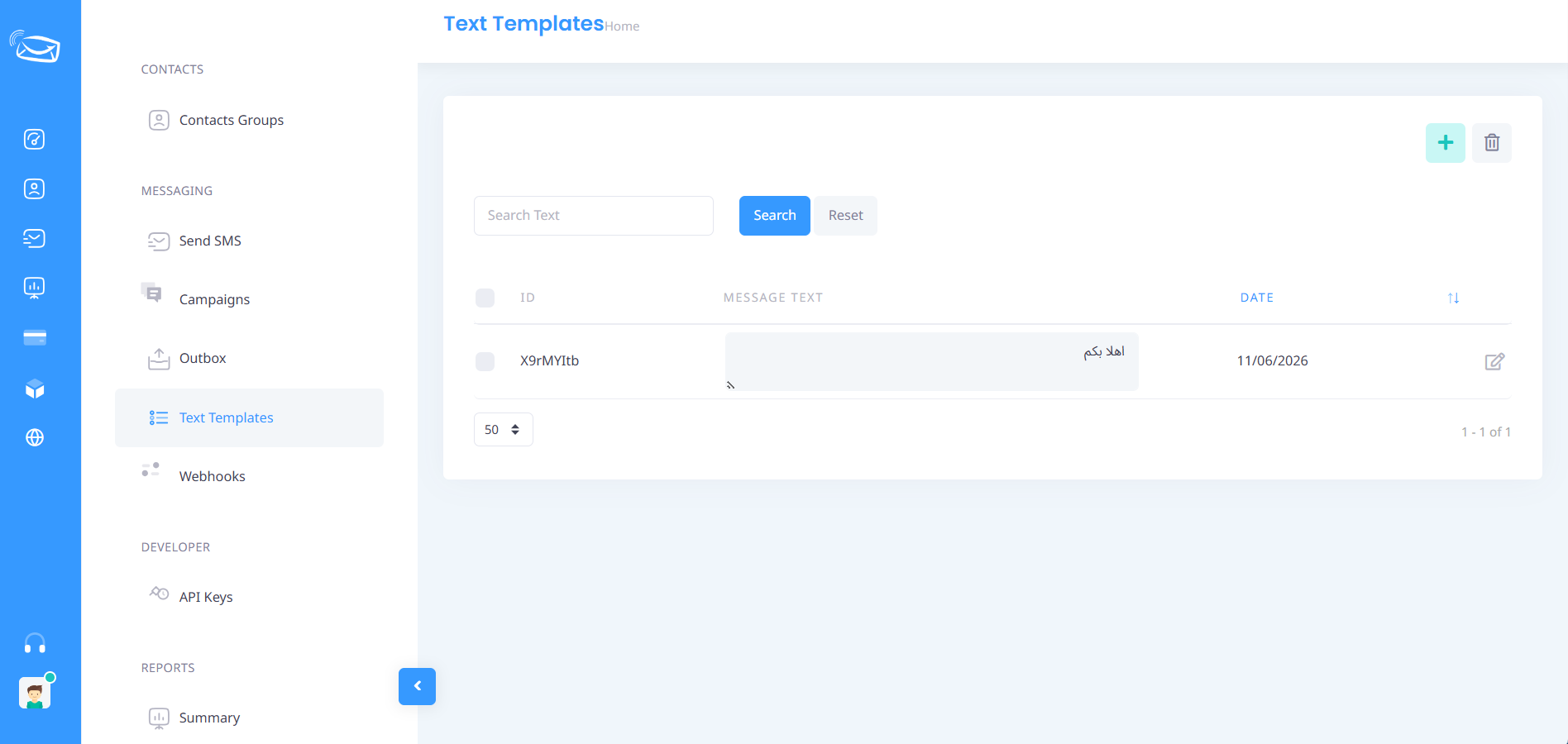
From the side menu, click Message Templates.
2. Add a New Template
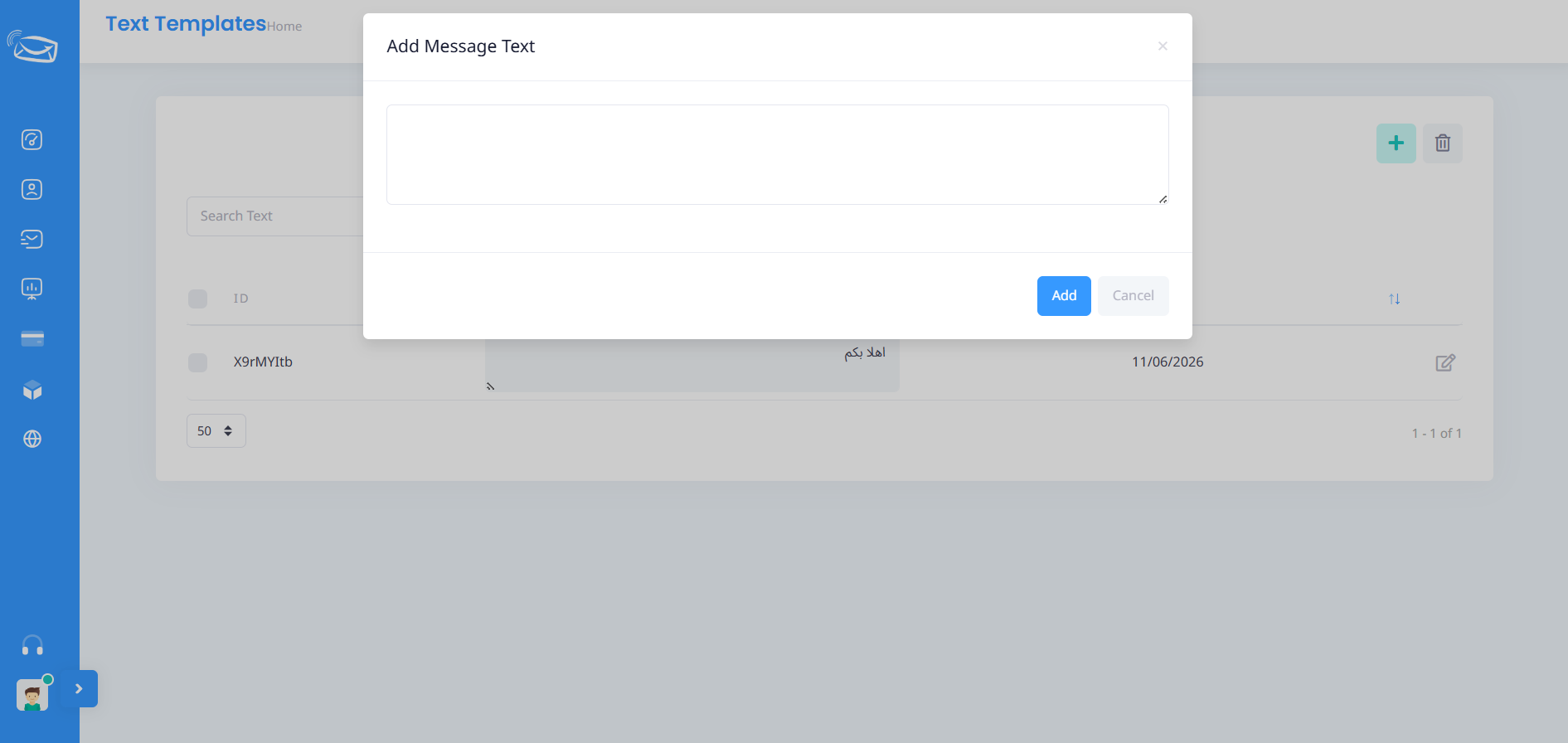
Click the (+) Add button located at the top of the page to create a new message template.
3. Enter the Message Content
A new template window will appear. Enter the SMS text you would like to save in the designated field.
Example:
Welcome to OurSMS. We are happy to serve you.
4. Save the Template
After entering the message content, click the Add button to save the template.
5. Verify the Template Has Been Added
Once saved, the template will appear in the Message Templates list and can be selected directly when sending SMS messages.
Notes
- You can create an unlimited number of message templates based on your needs.
- Saving frequently used messages helps reduce time when sending SMS campaigns and notifications.
- Unused templates can be deleted at any time using the delete button next to the template.
Using Message Templates helps improve efficiency, maintain message consistency, and simplify the SMS sending process within the OurSMS platform.