




Welcome to the Help Center
How to Change Your Password
Change Password in OurSMS Platform
The OurSMS platform allows users to change their account password at any time to enhance account security and prevent unauthorized access.
Steps to Change Your Password
Step 1: Open Your Profile
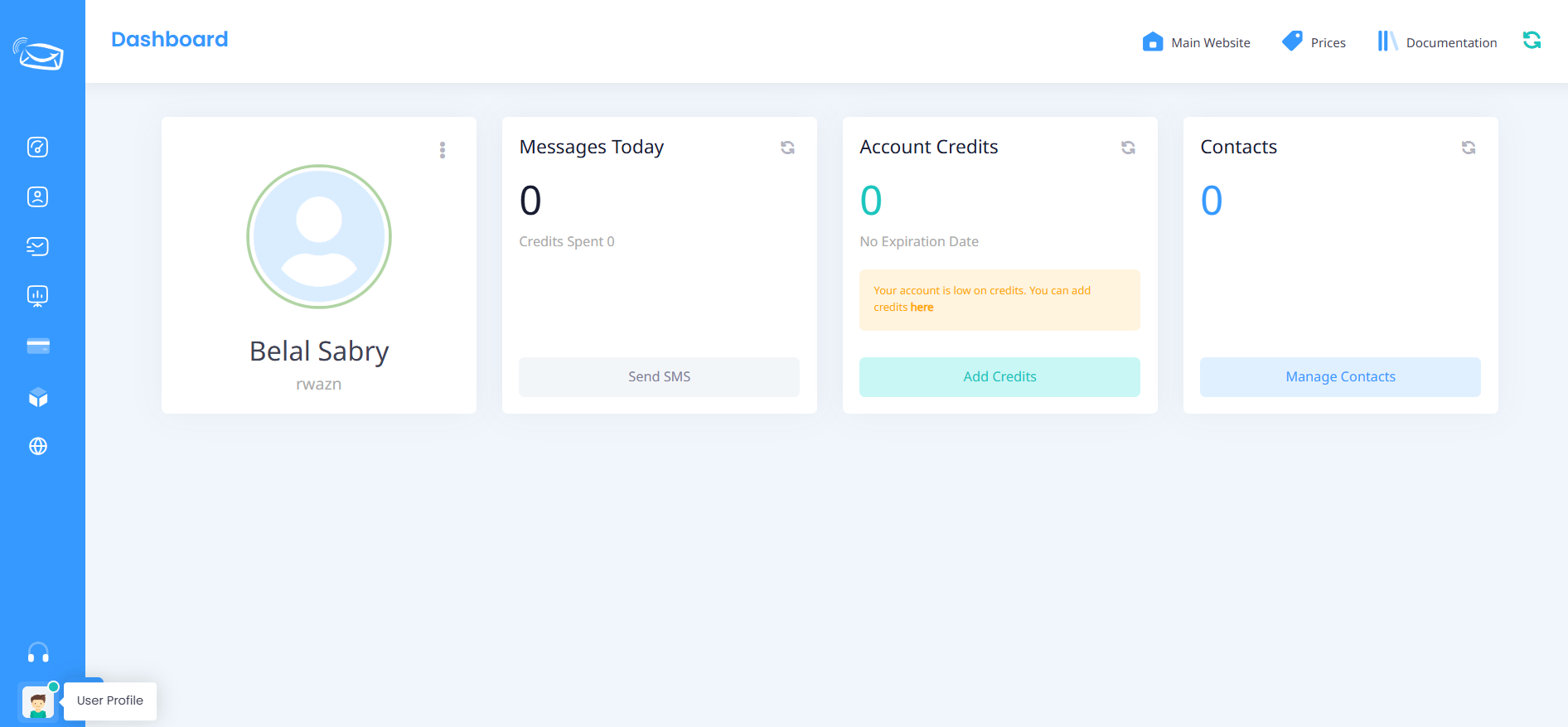
After logging in to the OurSMS platform, click on your profile picture or account icon located at the bottom-left corner of the screen, then select Profile.
Step 2: Open Account Information
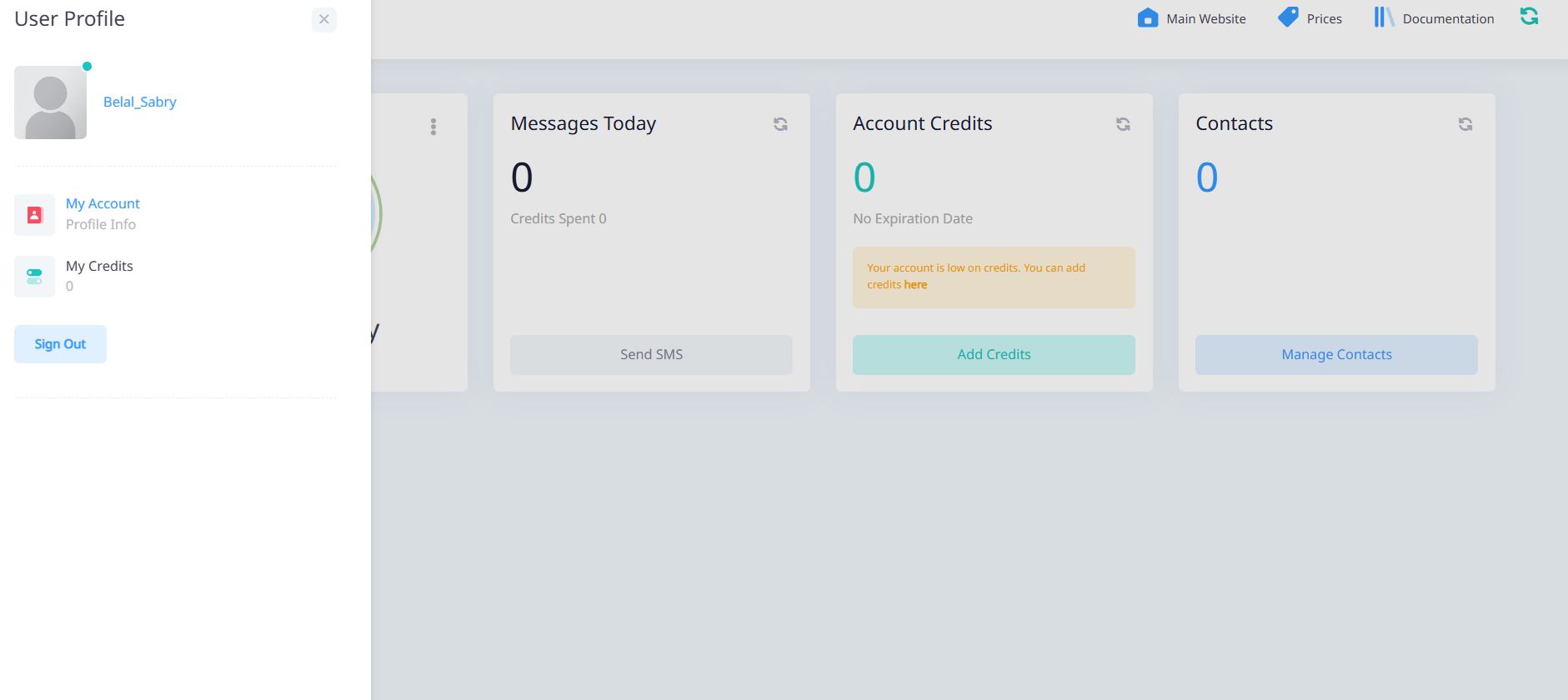
From the profile menu, click Account Information.
Step 3: Go to the Security Section
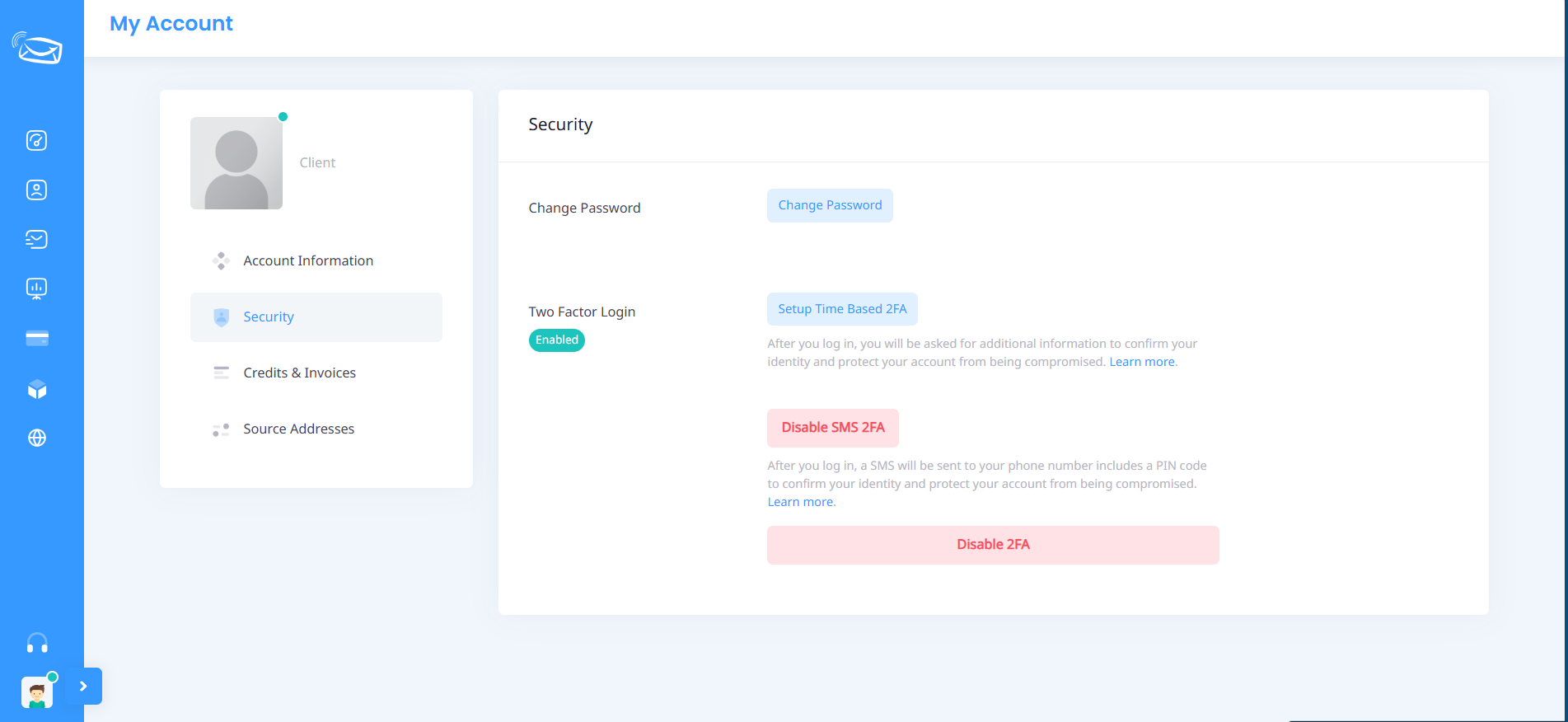
From the account menu, click Security to access password and two-factor authentication settings.
Step 4: Click Change Password
Click the Change Password button.
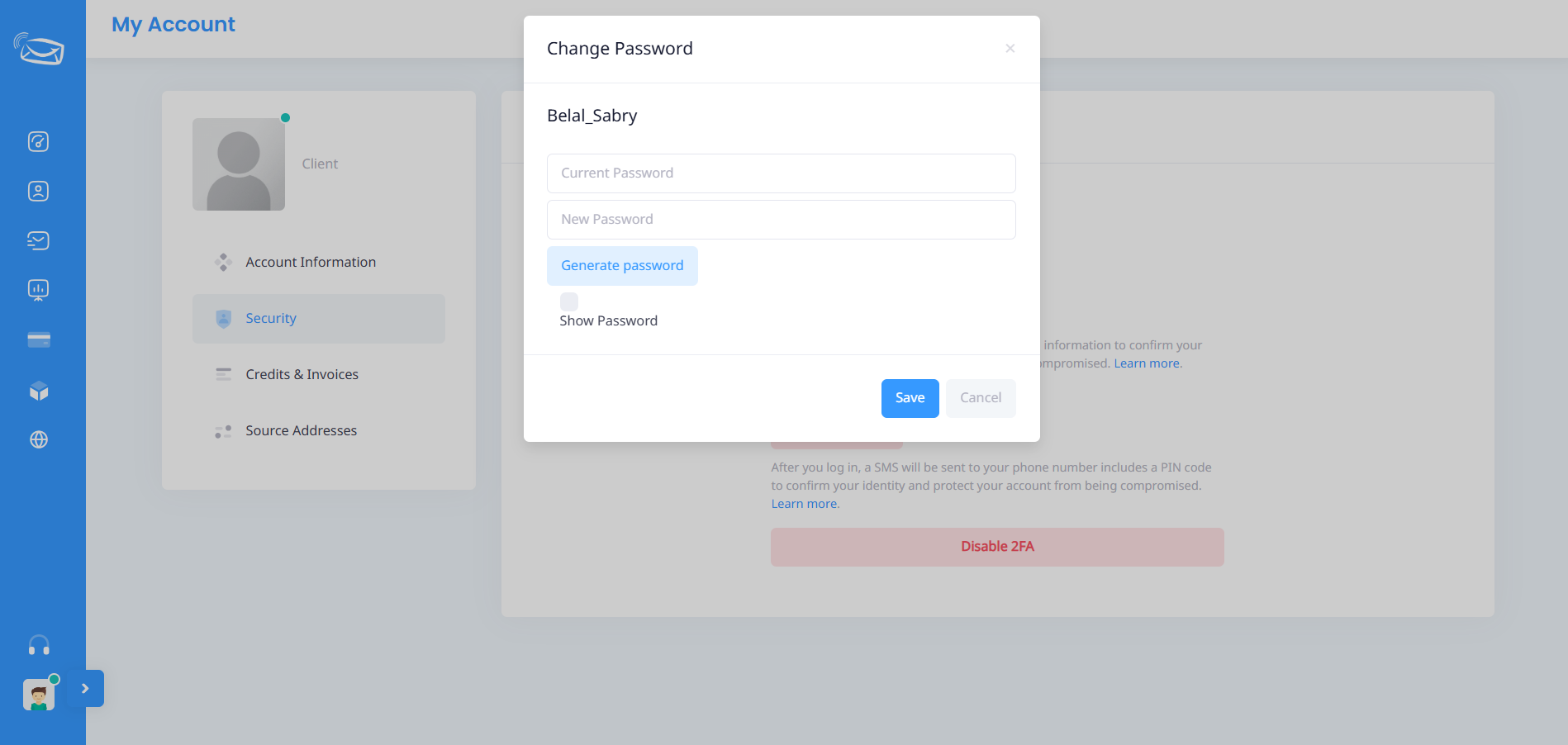
A window for updating your password will appear.
Step 5: Enter Your New Password Information
Enter the following details:
- Current Password
- New Password
You can use the Generate Password option to automatically create a strong password.
You may also enable the Show Password option to verify the entered information before saving.
Step 6: Save Changes
After entering the required information, click Save to update your account password.
The new password will be applied immediately and can be used for future logins.
Important Security Tips
- Use a strong password containing uppercase and lowercase letters, numbers, and special characters.
- Never share your password with anyone.
- Change your password periodically.
- We recommend enabling Two-Factor Authentication (2FA) for additional account protection.
Need Assistance?
If you experience any issues while changing your password, please contact the OurSMS support team for assistance.