




Welcome to the Help Center
How to add numbers from an Excel file
Import Contacts from an Excel File in OurSMS
The Excel Import feature in OurSMS allows you to upload large numbers of contacts at once using an Excel file, saving time and effort when adding customers or updating contact databases.
Steps to Import Contacts from an Excel File
1. Open Contact Groups
From the side menu, click Contact Groups.
2. Select the Desired Group
Click on the contact group where you would like to add the contacts.
3. Open the Import Page
Click the Add Contacts icon located at the top of the page.

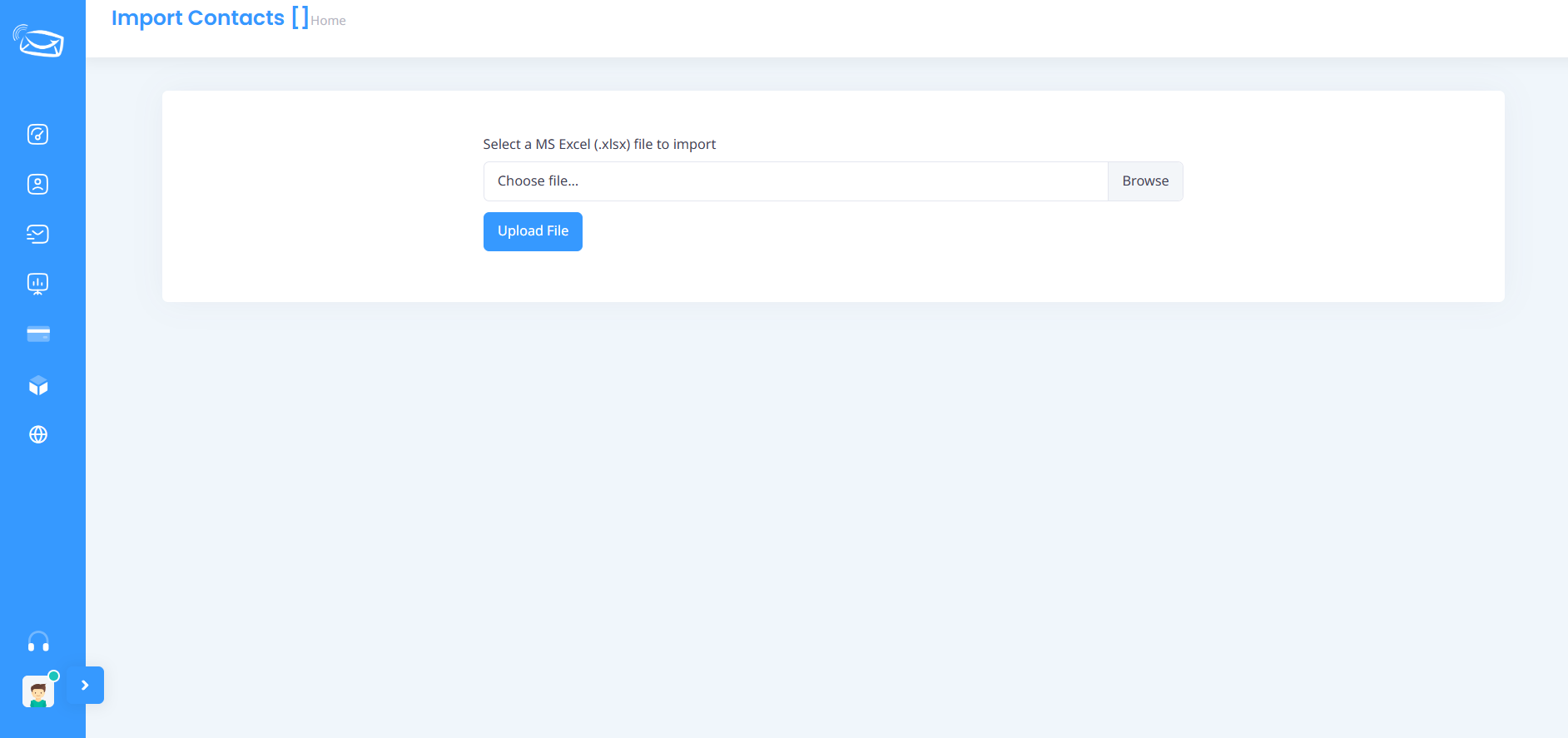
4. Select an Excel File
Click the Browse button and select the Excel file containing your customer contact information.
5. Upload the File
After selecting the file, click Upload File to begin the import process.
6. Review the Data
The system will read the information in the Excel file and add the contacts to the selected group.
7. Verify the Import
Once the import process is complete, the contacts will appear in the group and can be used immediately when sending SMS messages.
Excel File Requirements
To ensure a successful import, please follow these recommendations:
- Save the file in XLSX format.
- Enter mobile numbers in the correct format without using the (+) symbol.
- Avoid blank rows within the file.
- Verify all data before uploading the file.

Benefits of Importing Contacts from Excel
- Import thousands of contacts at once.
- Save time compared to manual entry.
- Easily update customer databases.
- Organize contacts into dedicated groups.
- Use imported data immediately in SMS campaigns.
Important Notes
- Make sure the imported phone numbers belong to recipients who have authorized receiving messages.
- Review the Excel file before uploading to ensure data accuracy.
- Create multiple contact groups to better organize customers and manage marketing campaigns.
Importing contacts from Excel helps streamline contact management and makes SMS campaign preparation faster and more efficient within the OurSMS platform.